

Migration of your master and business data from SAP and non-SAP systems to SAP S/4HANA is a critical part of your SAP implementation project, and the SAP S/4HANA migration cockpit can make your life easy. Migrating your master data was challenging with ECC and older SAP versions. However, the migration cockpit has addressed those problem areas.
The migration cockpit utilizes migration objects to locate and transfer your business data during the migration process. The migration object specifies the migration process for specific business objects, and it also carries the mapping information and conversion rules for source to target data transfer.
SAP migration tool provides you with Microsoft Excel XML files preloaded with the instructions you need to migrate. For example, It can include your master data related to business partners, data from your suppliers and your customers, or your master data such as your material master, material groups, purchasing groups, plant-related data, and your MRP details.
In total, you can migrate 30 purchasing related data, including the following ones:
- Contracts
- Purchase Orders
- Open POs
- Open PRs
- Scheduling agreements
- Material Commodity
- Material inventory balance
- Material Variant
- Purchasing info records
- Extending your Purchasing info record
- Quota Arrangement
- Service entry sheets
- Service Master
- Source List
- Commodity codes
The Migration Cockpit from SAP comes preloaded with 439 entries containing all domains.
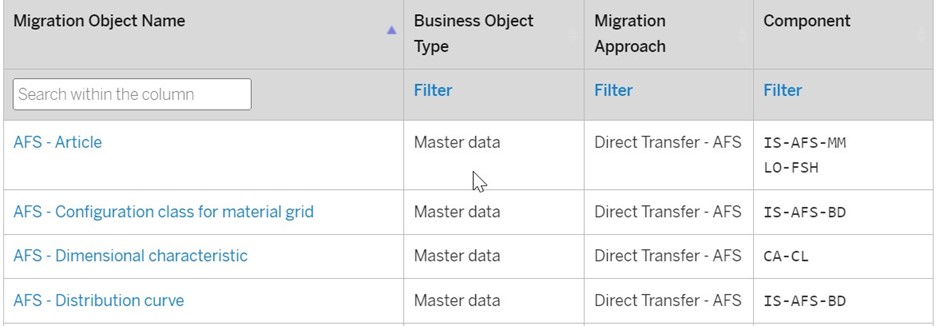
The tools help migrate the data from Excel and other sources to SAP. It relies on migration objects, source and target structures.
In the SAP S/4HANA migration project, our mission is to migrate transactional data objects (Open purchase orders). In this project, we will use two essential tools at the same time – LTMC (Legacy Transfer Migration Cockpit) and LTMOM (Legacy Transfer Migration Object Modeler).
Before going into the process, let’s quickly get familiar with LTMC and LTMOM.
What is LTMC?
LTMC or Landscape Transformation Migration Cockpit is an updated version of LSMW or Legacy System Migration workbench for SAP data migration. LTMC supports two approaches for migrating your data – the file-based approach and the staging tables approach. LTMC is the transaction code you enter to start migrating your master data.
What is LTMOM?
LTMOM or Legacy Transfer Migration Object Modeler helps us make additional customization fields within the source structure and have them mapped to the target structure. However, LTMC may not allow such customizations, and you can overcome this drawback with LTMOM.
Now, let’s execute our project step by step.
Migration Using LTMC and LTMOM
First, we will begin with LTMC and then switch to LTMW.
Starting with LTMC
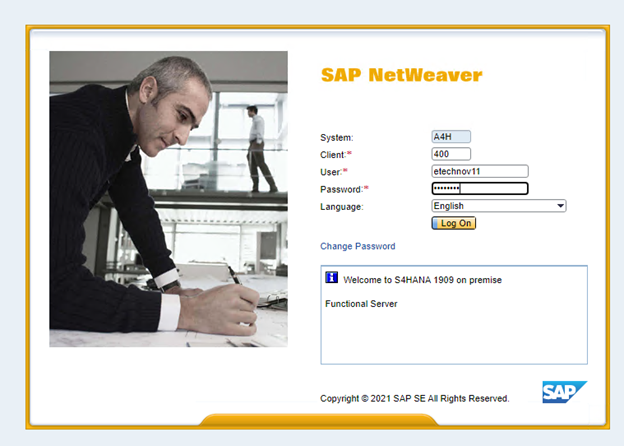
Step 1: Launch the migration cockpit by using LTMC.
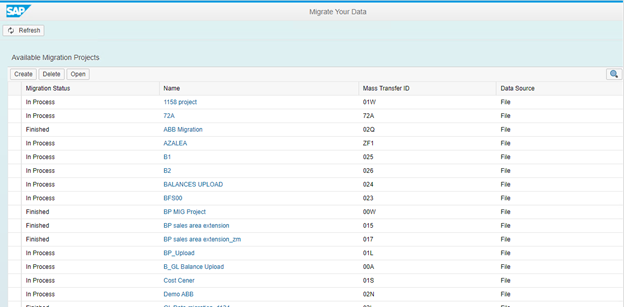
Step 2: You will see the first screen.
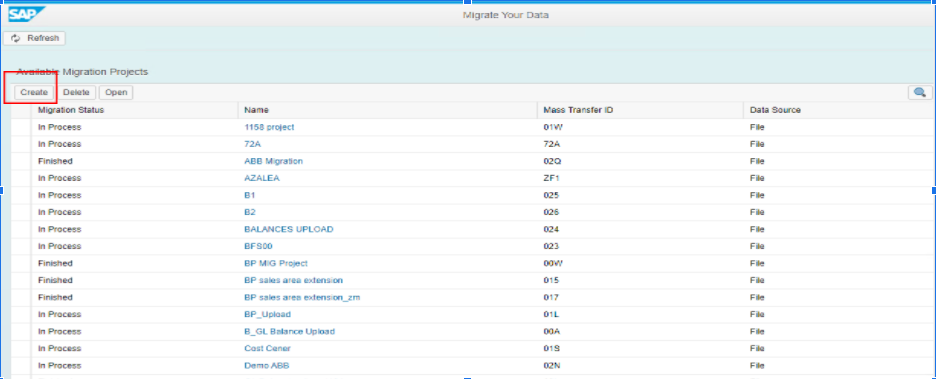
Step 3: Create a Migration Project.
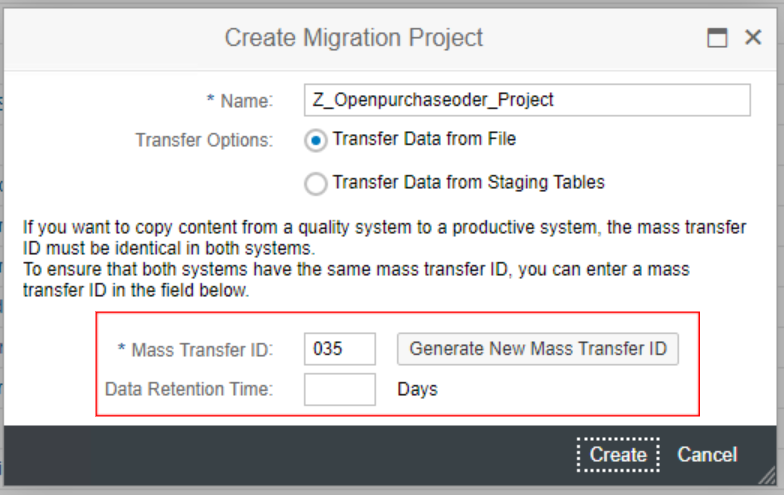
Notice that the system has generated the Mass Transfer ID automatically and it is critical in the case you want to copy content from a quality system to a production system for example. Just make sure you have the same mass transfer ID in every environment.
Data Retention Time: You can indicate to the system the duration (in days) during which it must preserve the data, i.e., at the expiry of the conservation period, the system will automatically delete the data. Also, if you leave this field empty, the system will preserve the data.
Note that within one project, we can upload multiple objects.
Step 4: Press Create.
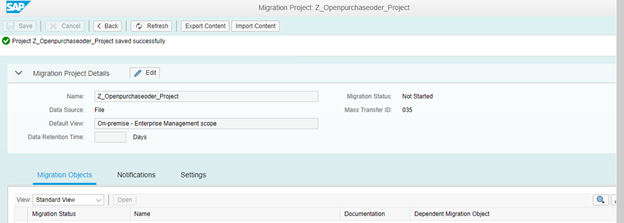
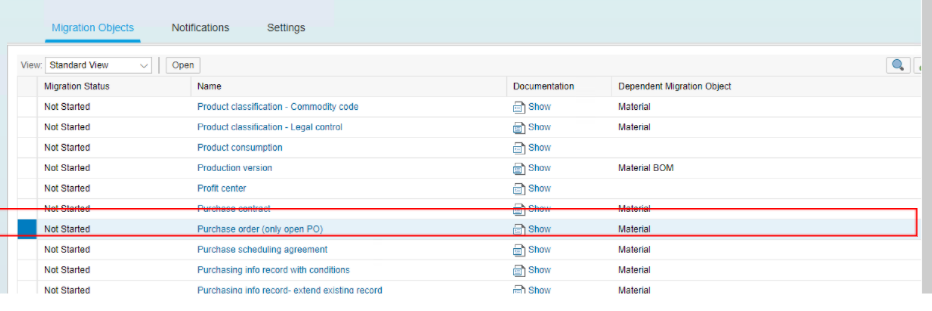
Step 5: Select the object you want to migrate in our case is: Open Purchase Order. Scroll down to looking the object (Open Purchase Order)
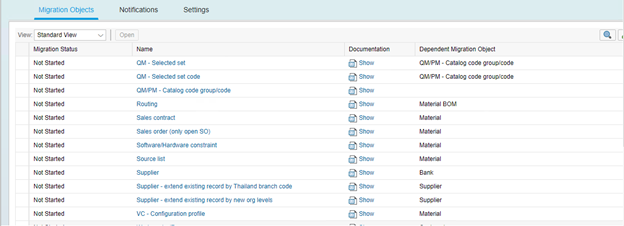
Step 6: Select the object.
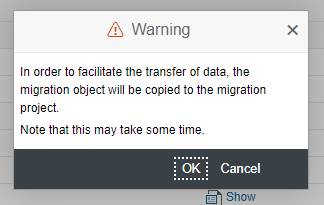
You will get a warning message, press okay and continue.
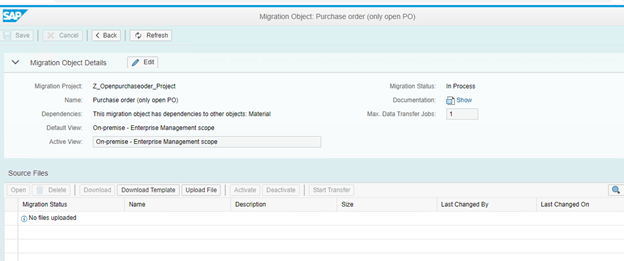
So far, we have used LTMC without any trouble. But, now let’s add some complications in our scenario.
Using LTMOM for Migration
For example, during the migration project, our client requested us to add a Z field in a standard purchase order << Customer Data>> but as we know, LTMC provides only standard fields.
Thanks with LTMOM we will be able to change the LTMC template (source structures) and add the client requirement.
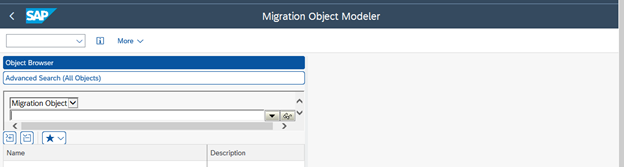
Let’s see how we can do that step by step. Step 1: Open LTMOM Transaction.
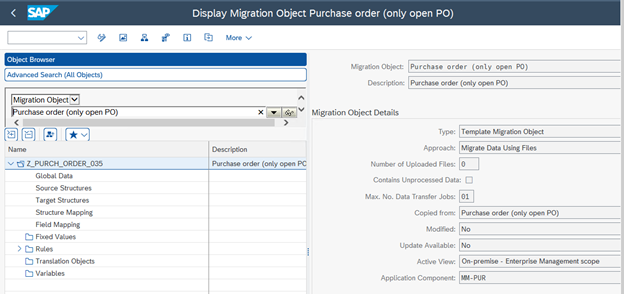
Step 2: Check out the project name <<Z_Openpurchaseoder_Project>>
Step 3: Click Source structure.
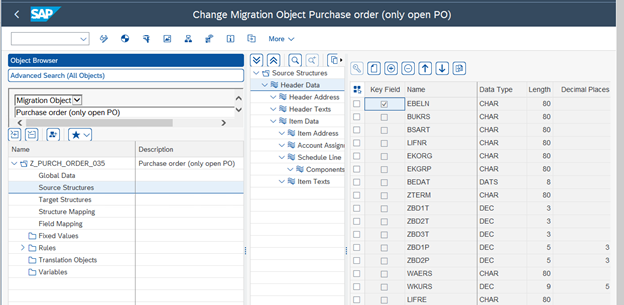
Step 4: Press add field
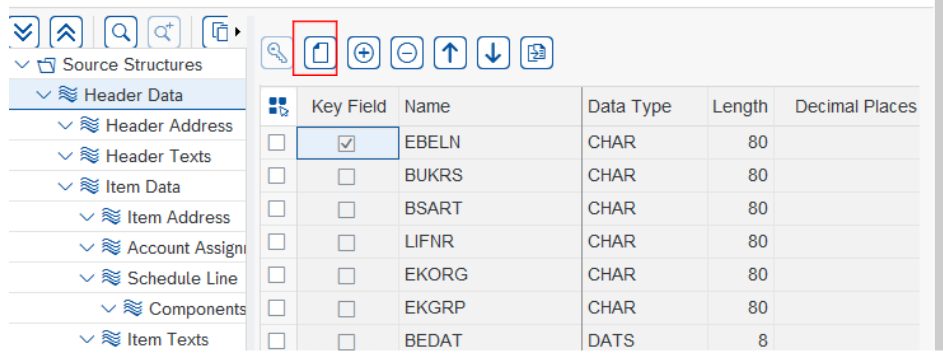

Step 5: Fill in the following details in the Z field you have created
- Name
- Data type
- Length
- Decimal places
- Group text
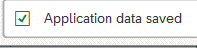
Step 6: Click the save button.
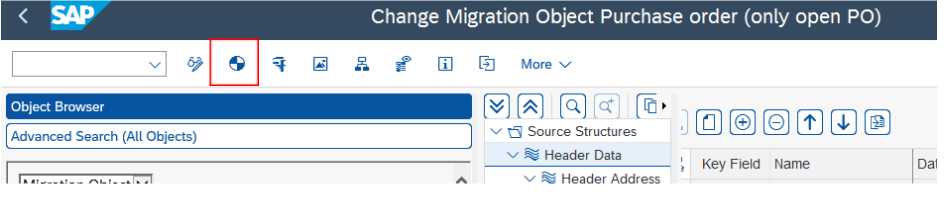
Also, click on Generate button the system will generate the Z field in the source structure (LTMC template)
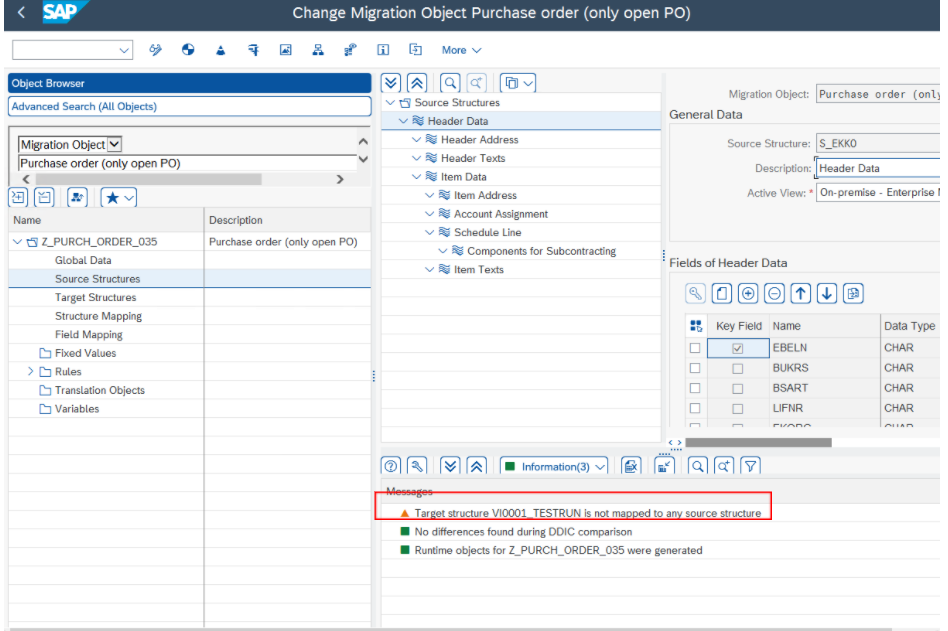
You can notice that you have a warning message
This warning message means that you should seek help from ABAP specialist to add the same field name in the Target Structure.
It is also important to note that it is not possible to modify the target structure directly - the structure is determined by a standard BAPI. The only option for the ABAPer is either enhance the BAPI or to add a wrapper to add the new field.
Step 7: Now let’s go back to LTMC
And download the template.
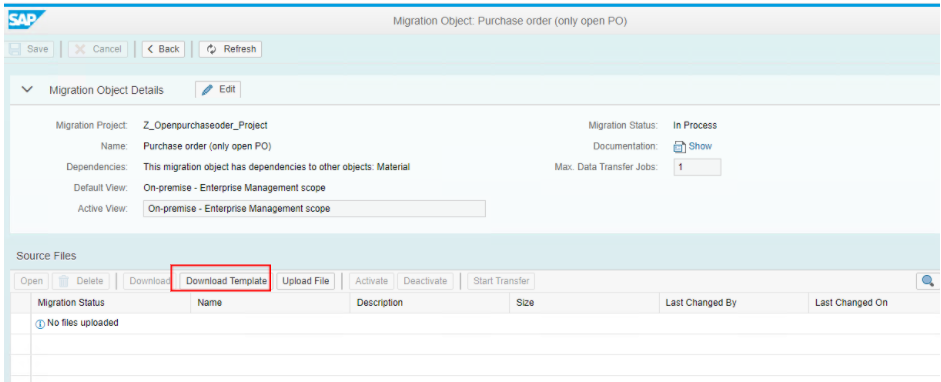
The Z field was successfully created in the source structure.
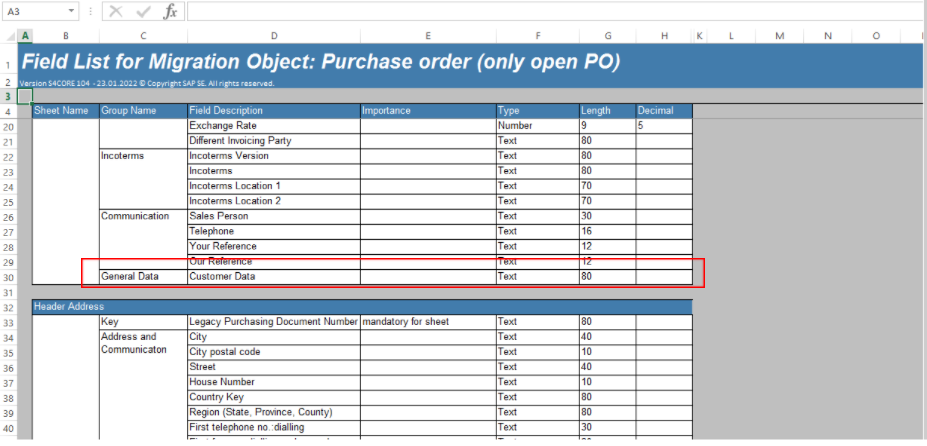
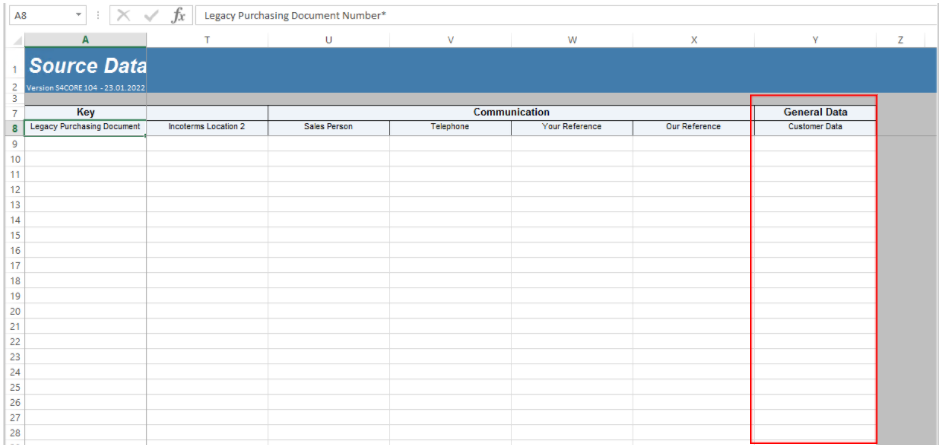
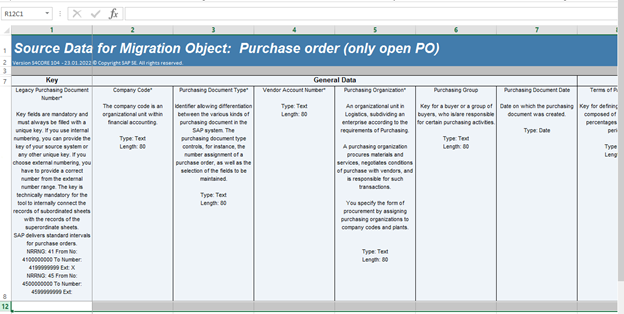
Step 8: Read thoroughly before you fill out the xml file.
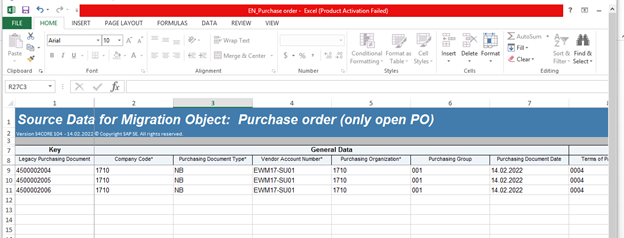
Step 9: Fill out the xml template file with open Purchase order data.
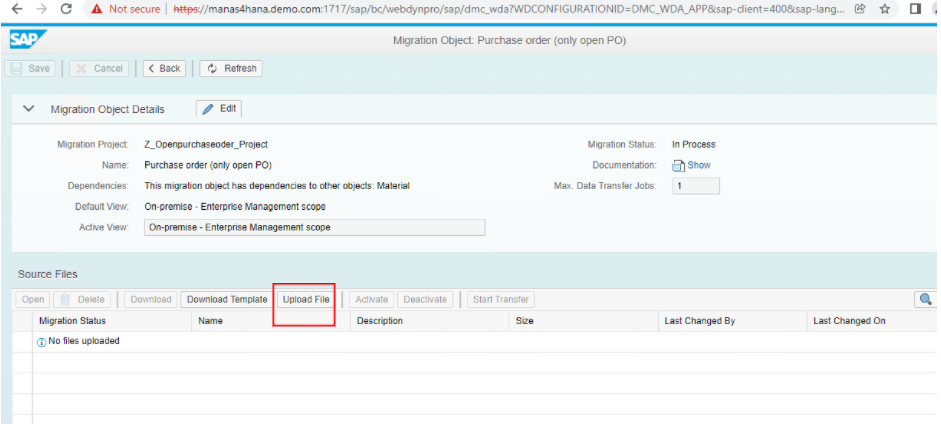
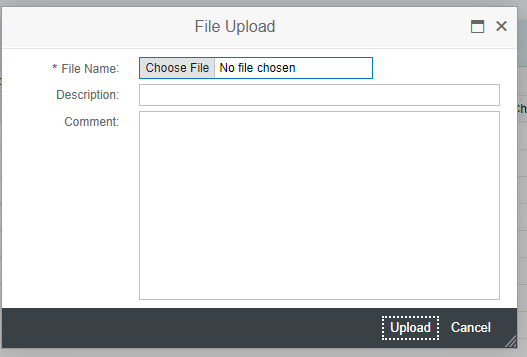
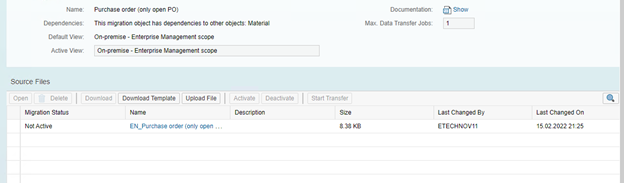
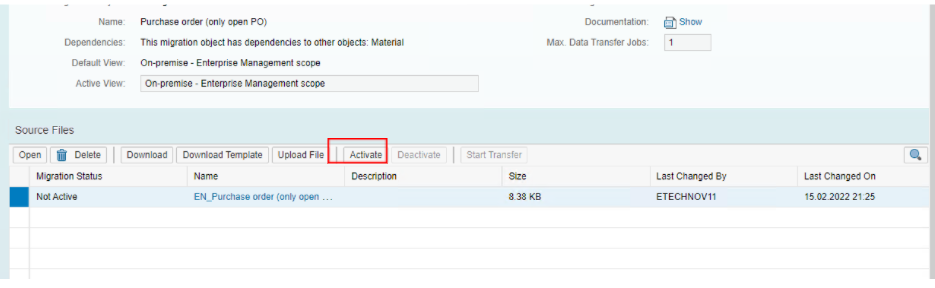
Step 11: Select the file and activate.
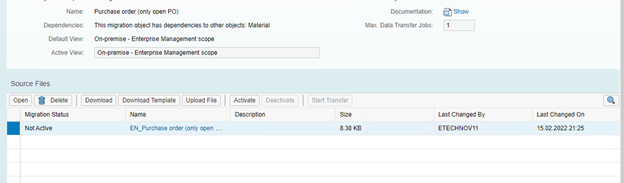
Step 12: Then start the transfer.
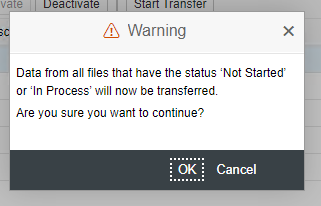
Press ok to continue.
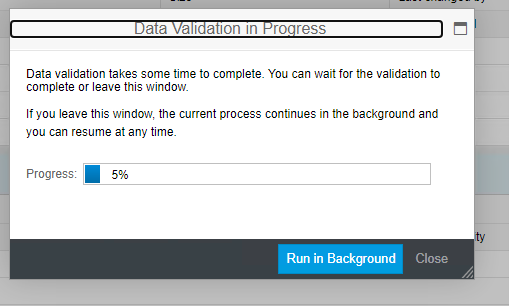
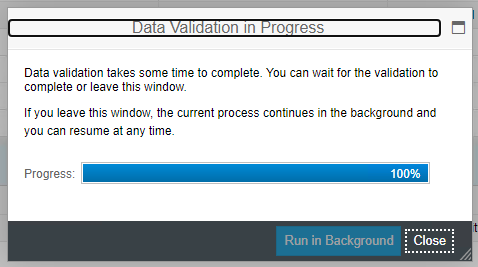
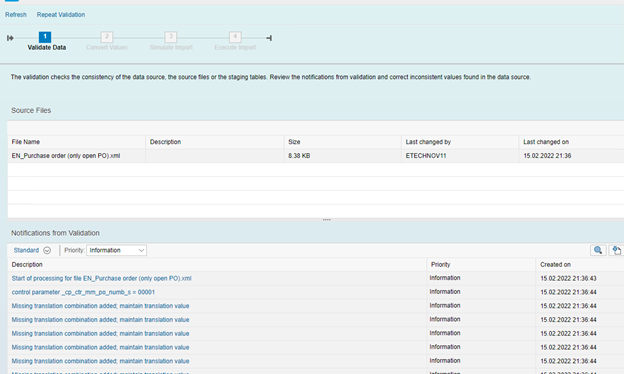
We have successfully uploaded the file close and Press next.
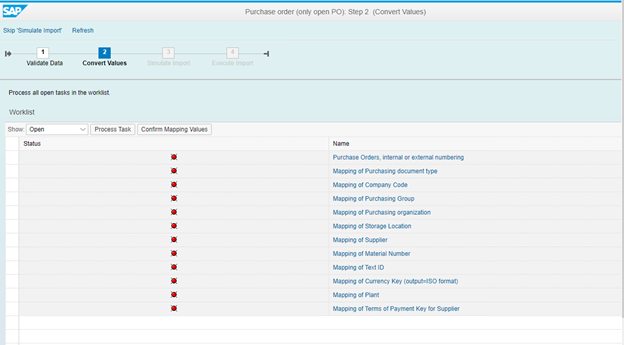
Mapping the Source File to S4/HANA Target
The next step in the migration is mapping the values in the source file (template) to S4/HANA target value.
I would advise you to go through every mapping and confirm them one by one rather than selecting and confirming all at once.
Indeed, selecting and confirming all mapping values at once will help you save time and work very fast, but it’s better to avoid errors within the project stage and be patient.
Let’s do it with the following steps.
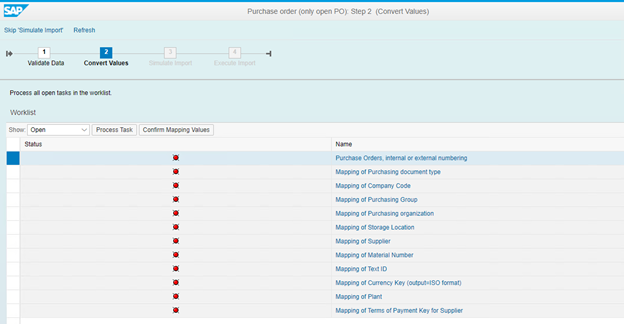
Step 1: Select one mapping.
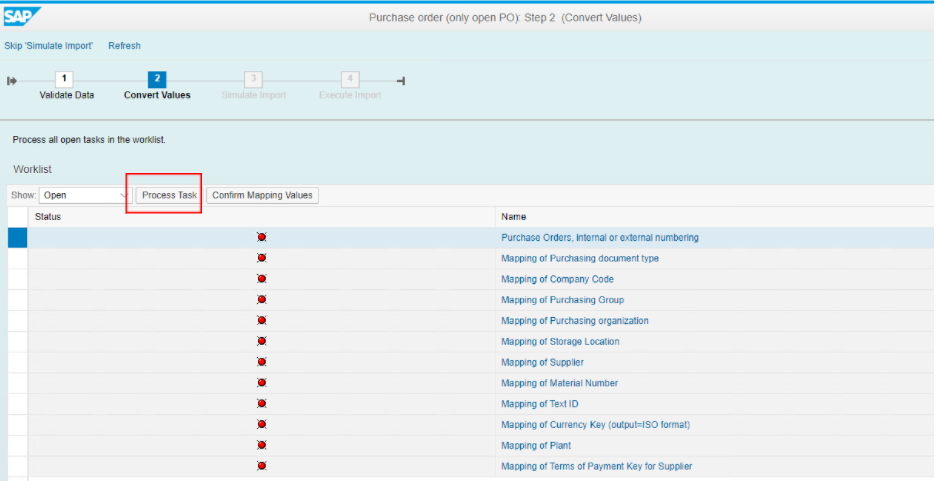
Step 2: Press process task.
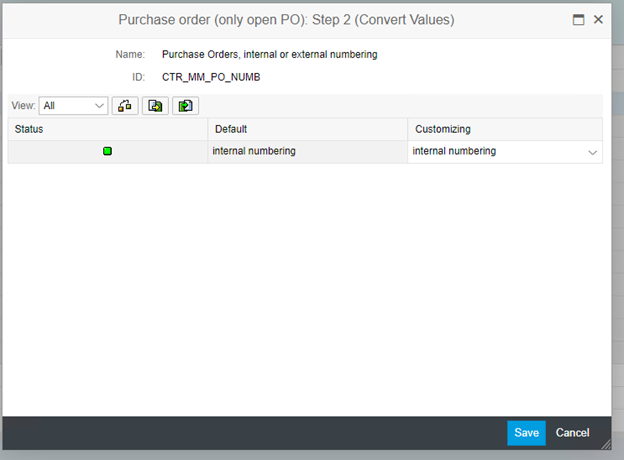
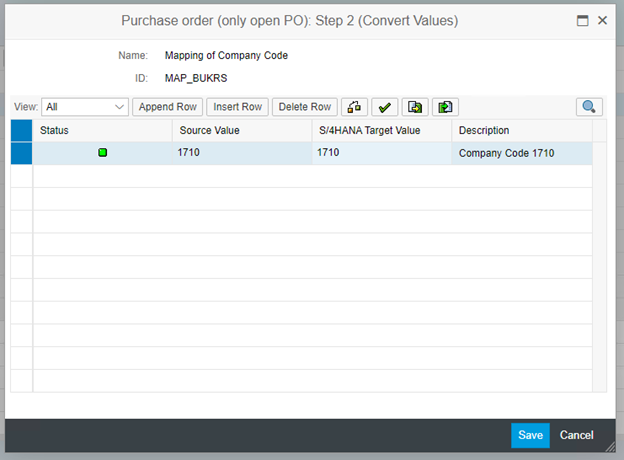
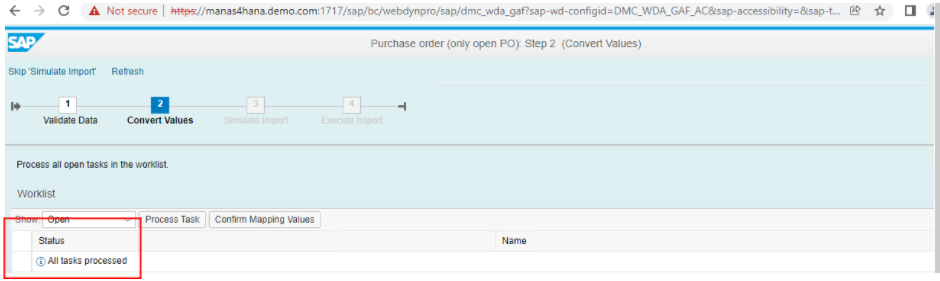
Step 3: When all tasks have been completed, let’s continue the process. Press next button.
Step 4: Simulate the migration.
This stage is critical because here, the system scans each record and attempts to perform a simulated write to the database and reports any errors you may encounter in the process.
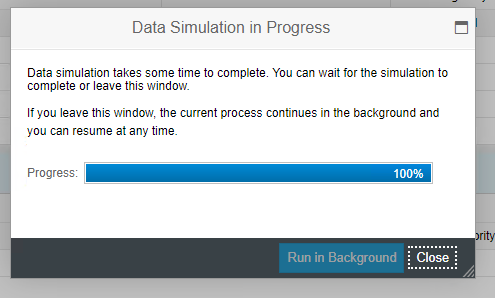
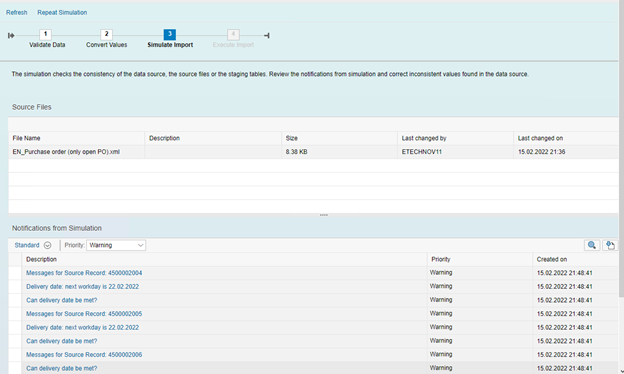
Step 5: When the simulation is already finished, press the next button.
The data will be migrated to S/4HANA.
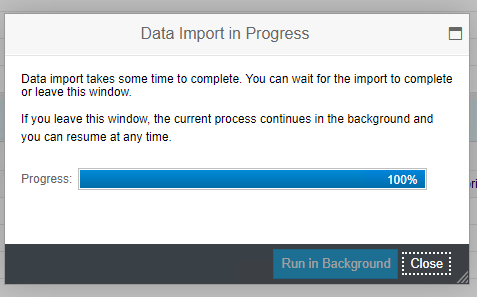
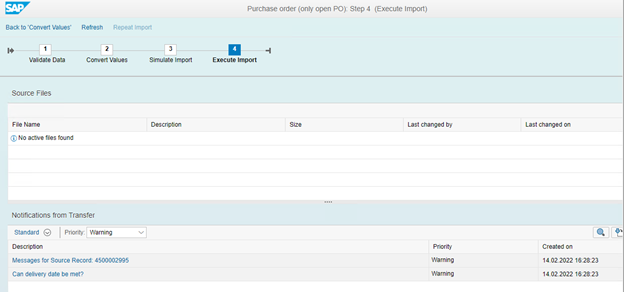
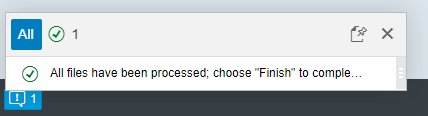
Step 6: Press Finish button.
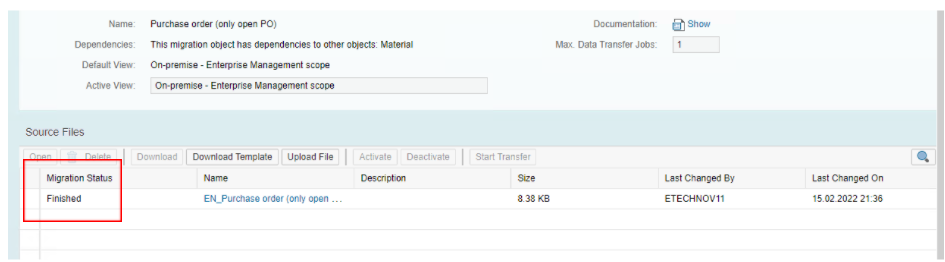
Check out the migration status.
Step 7: Let’s go back to the system. Open t-code ME2N.
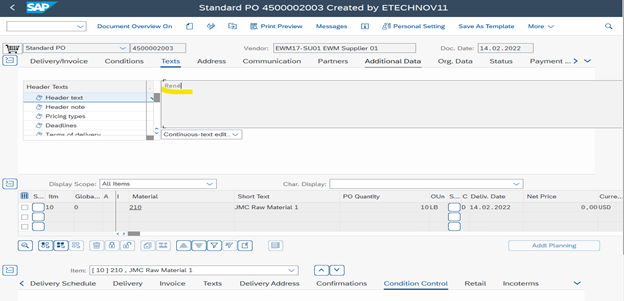
That’s it! We have successfully uploaded our data using LTMC and LTMOM.
Concluding Note
SAP introduced its migration cockpit LTMC to ease your SAP S/4HANA migration process. However, LTMC has limited capabilities in some areas specially related to adding customized fields and file size. So, LTMOM was introduced as an update over LTMC letting you map your source structure to the target structure more accurately while allowing customizations.